
PRODUCT CONTEXT
K12 LMS is the digital learning platform used by Lighthouse Learning schools to manage academic communication, student progress, and school operations.
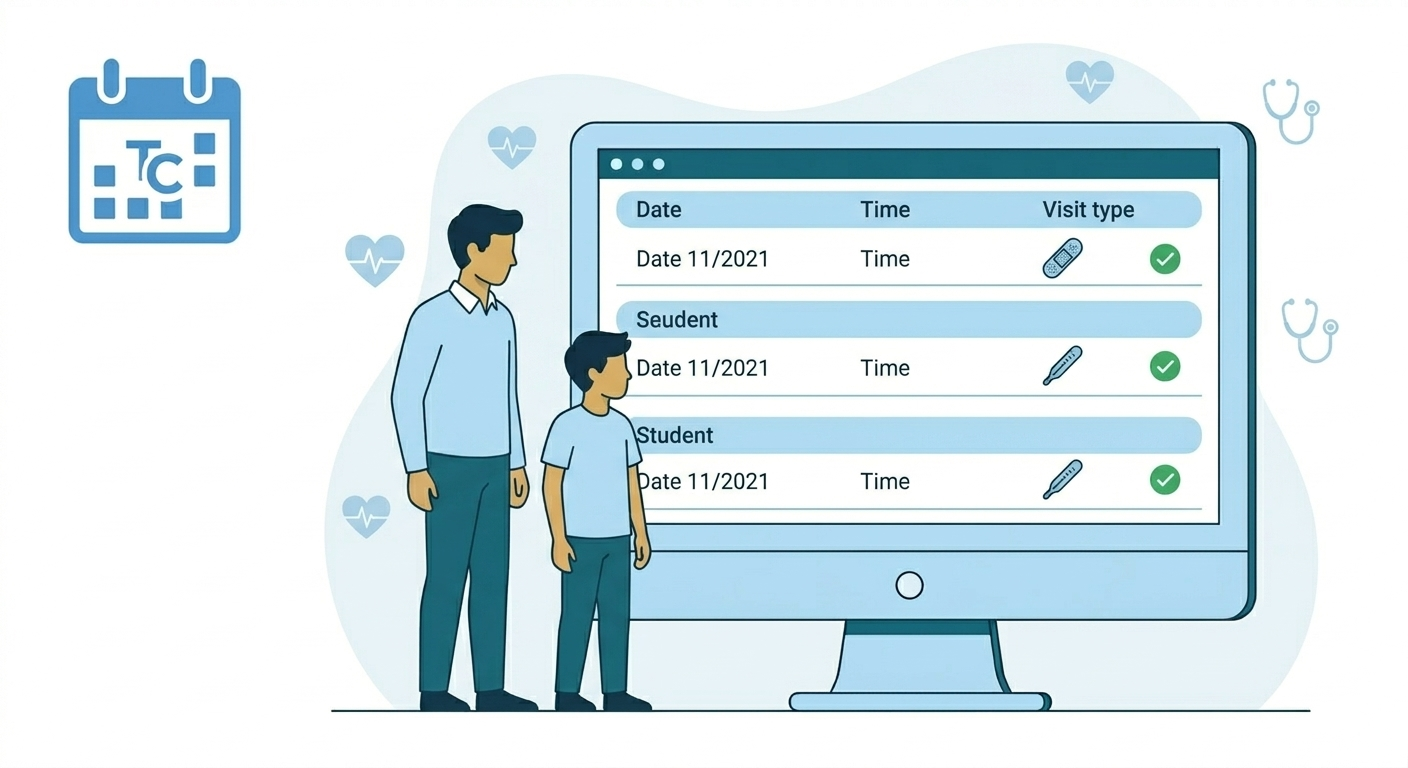
The Infirmary feature enables the platform to capture and display records of student visits to the school infirmary. These records are generated by the school’s health service provider and shared with the LMS through a secure integration.
The feature allows parents and students to access health visit records directly within the student profile, ensuring transparency regarding the student’s health and the care administered at school.
Within the K12 LMS platform, the Infirmary module appears inside the Student Profile as a dedicated tab where health visit records are stored and accessed.
FEATURE DESCRIPTION
The Infirmary feature informs parents about their child’s health visits to the school infirmary and maintains a historical record of those visits.
Whenever a student receives medical attention at the school infirmary:
- The school’s healthcare provider records the visit in their health system.
- A discharge summary PDF is generated.
- The healthcare system sends the PDF and student identifier to K12 LMS.
- K12 LMS stores the visit record and associates it with the student profile.
- The parent receives a notification informing them of the visit.
- The record becomes accessible under the Infirmary tab in the student profile.
The feature provides:
• Immediate awareness for parents
• Transparent documentation of health care provided at school
• A centralized history of infirmary visits
• Easy access to discharge reports and treatment summaries
PLATFORMS SUPPORTED
Both
• Web (K12 LMS Web Portal)
• Mobile (K12 LMS Mobile App)
PERSONAS INVOLVED
Primary Personas:
• Parent
• Student
Administrative Personas (System Context) [coming soon]:
• Super Admin
• HO Admin
• School Admin
Note: Administrative personas do not actively interact with the feature but oversee system governance.
BUSINESS RULES
- Infirmary visit records are generated by a third-party healthcare provider system.
- The healthcare system sends visit data to K12 LMS through an API integration.
- The API payload includes:
- Student identifier
- PDF link for discharge summary
- Student identifier
- K12 LMS stores this information in the Infirmary Visits repository.
- The system associates the visit record with the correct student profile.
- Records are displayed in chronological order.
- Each record contains:
- Visit Date
- Discharge Summary PDF
- Visit Date
- Parents receive an in-app notification whenever a new visit record is created.
PERMISSIONS LOGIC
The system uses Role-Based Access Control (RBAC).
Two permissions govern this feature:
• Parent_Infirmary_View
• Student_Infirmary_View
Only users with these permissions can access infirmary records.
No editing or deletion capabilities exist for end users.
NOTIFICATIONS
Notification Type:
• In-app notification
Triggered when:
• A new infirmary visit record is received and stored.
Audience:
• Parent
Notification Message Example:
“Your child received care at the school infirmary today.”
Clicking the notification redirects the user to the Infirmary tab inside the Student Profile.
1. Introduction
The Infirmary feature exists to ensure that parents remain informed about their child’s health and wellbeing while at school.
Students occasionally visit the school infirmary for reasons such as:
• Fever
• Injury
• Discomfort or illness
• Preventive care
Previously, these records were communicated through external messaging systems or manual updates. This approach made it difficult for parents to access past records or verify the care provided.
The Infirmary feature solves this problem by:
• Automatically notifying parents when a health visit occurs
• Providing immediate access to discharge summaries
• Maintaining a permanent history of infirmary visits
Benefits include:
For Parents
• Transparency about student health at school
• Immediate awareness of medical incidents
For Students
• Clear documentation of care received
For Schools
• Improved communication with parents
• Better record keeping for health events
2. Role-Based Access Overview
| Role | Web Access | Mobile Access | Create | Edit | Delete | View |
| Parent | Yes | Yes | No | No | No | Yes |
| Student | Yes | Yes | No | No | No | Yes |
RBAC Logic
• Infirmary records are system-generated through integration with the healthcare provider.
• No manual creation or modification is allowed within the LMS.
• Parents and students can only view and download records.
• Administrative roles may access records for oversight if permissions allow.
3. Super Admin Guide
3.1 Responsibilities
• Ensure system-level integration with healthcare provider
• Maintain platform governance
• Ensure proper role permissions
3.2 Administration
Super Admins oversee the functioning of the integration that sends infirmary records into the LMS.
Responsibilities include:
• Monitoring system integrations
• Ensuring data integrity
• Handling system-level issues
3.3 Configuration
Configuration tasks include:
• Managing API integration
• Ensuring data mapping with student profiles
• Monitoring system logs
3.4 Permissions
Super Admins may view infirmary records but cannot modify them.
3.5 Reporting
Super Admins may analyze:
• Frequency of infirmary visits
• System integration success rates
3.6 Use Cases
Example scenarios:
• Investigating integration failures
• Validating records for compliance audits
4. HO Admin Guide
HO admins do not access the Infirmary feature.
5. School Admin Guide
School Admins do not access the Infirmary feature.
6. Teacher Guide
Teachers do not access the Infirmary feature.
7. Parent Guide (Web & Mobile)
7.1 Access
Parents access the feature through:
Student Profile → Infirmary Tab
7.2 Default View & Navigation
The Infirmary tab contains:
Two sections:
- Infirmary Visits (Default view)
- Infirmary Analytics (coming soon)
The visits section displays:
• Visit Date
• Action Buttons
7.3 What Parents Can Do
Parents can:
• View infirmary visit records
• Open discharge summaries
• Download PDF reports
7.4 Notifications
Parents receive notifications when:
• A new infirmary visit occurs.
Notification example:
“Your child received care at the school infirmary today.”
7.5 Use Cases
• Reviewing treatment given at school
• Downloading medical reports
8. Student Guide (Web & Mobile)
8.1 Access
Students can access infirmary records in their profile.
8.2 Default View & Navigation
Students see the same visit history displayed in chronological order.
8.3 What Students Can Do
Students can:
• View their infirmary visit history
• Open discharge summary documents
8.4 Notifications
Students currently do not need to receive notifications.
8.5 Use Cases
• Reviewing past health visits
• Accessing discharge instructions
9. How-To Guide
How to View Infirmary Records
- Login to K12 LMS.
- Open the Student Profile.
- Click the Infirmary tab.
- Review the list of visits.
How to Open a Discharge Summary
- Go to the Infirmary Visits section.
- Click View File.
- The PDF opens within the platform.
How to Download the Discharge Summary
- Open the PDF viewer.
- Click the Download button.
- Save the file locally.
10. Feature Logic & Display Rules
Display hierarchy:
Student Profile
→ Infirmary Tab
→ Visit History
Sorting rule:
• Visits are displayed in reverse chronological order.
Display fields:
• Serial Number
• Visit Date
• Actions (View / Download)
Mobile version:
• Information displayed as cards instead of rows.
11. Notifications Overview
Notification Trigger:
• New infirmary visit record received
Audience:
• Parent
Notification Delivery:
• In-app notification
Redirection:
• Opens student profile → Infirmary tab
12. Governance & Compliance Rules
Business rules:
• Only healthcare provider systems create records.
• No manual editing is allowed.
Security rules:
• Access controlled via RBAC.
• Only authorized users can view records.
System validations:
• Student ID must match LMS records.
13. Frequently Asked Questions
Who creates infirmary records?
Records are created automatically by the healthcare provider system.
Can parents edit infirmary records?
No. Records are read-only.
Why can’t I see a visit?
Possible reasons:
• Integration delay
• Student ID mismatch
Can records be deleted?
No. All records are retained for history.
14. Conclusion
The Infirmary feature strengthens communication between schools and parents regarding student health events.
By integrating healthcare records directly into the LMS, the system provides:
• Immediate visibility of health incidents
• Reliable documentation of care
• Long-term access to medical visit history
This ensures transparency, improves parent trust, and supports better student wellbeing management across Lighthouse schools.
